Live Search & Sorting
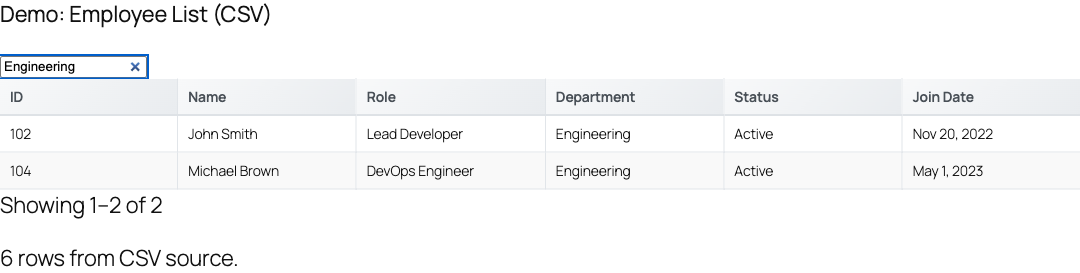
TableCrafter ships with an instant, client-side search box and clickable column sorting that work the moment a table renders. Search is toggled per table with the search attribute, while sorting is always available on every column header.
Overview
Search and sorting are two independent interactive features that run entirely in the browser against the data already loaded into the table, no extra network requests are made when a visitor types or clicks a header. Both work across all three integration methods: the [tablecrafter] shortcode, the native Gutenberg block, and the Elementor widget.
- Live search renders a single global search box above the table that filters every visible row as the visitor types. It is off by default and is enabled with the
searchattribute. - Column sorting makes every table header clickable. It is enabled automatically, every header rendered by TableCrafter carries the
tc-sortableclass and is keyboard-focusable.
Search and sorting operate on the full dataset, not just the current page. When a table is paginated, searching narrows the entire result set and pagination recalculates against the filtered rows.
Enabling Live Search
Add search="true" to the shortcode to show the search box. Because the default is false, leaving the attribute off keeps the table clean with no search field.
# Search box on, 10 rows per page
[tablecrafter source="https://api.example.com/products.json" search="true" per_page="10"]

# Search box explicitly off (same as omitting it)
[tablecrafter source="https://api.example.com/products.json" search="false"]
The search attribute is boolean-normalized, so true, 1, and yes all enable it (case-insensitive); anything else disables it. The same toggle exists as a checkbox in the visual Shortcode Builder under the TableCrafter admin menu, enabling it writes search="true" into the generated shortcode for you.
How search behaves
When enabled, TableCrafter injects a .tc-global-search text input above the table. Typing into it:
- Filters rows by matching the term against every column value in each row (a case-insensitive substring match, a row is kept if any of its cells contains the term).
- Is debounced by 300ms, so the table only re-renders after the visitor pauses typing rather than on every keystroke.
- Resets the table to page 1 so results are always visible from the top.
Search respects the columns you expose with include / exclude. If you hide a column from display, its values are still present in the underlying row data and remain searchable, which is useful for filtering on a hidden key.
Column Sorting
Every header cell TableCrafter renders is sortable out of the box. Clicking a header sorts the table by that column; clicking the same header again reverses the direction. Sorting is a two-state toggle:
- First click, sorts ascending.
- Second click on the same column, flips to descending.
- Clicking a different column, switches to that column, starting ascending again.
Sorting is type-aware: numeric columns are compared as numbers and text columns are compared as strings, so a price column sorts 9 before 100 rather than lexically. After a sort, the table returns to page 1 and the change is announced to assistive technology.
There is no attribute to switch sorting off globally, it is a core part of the table. If you do not want a column reordered, simply leave it out of the rendered view with the exclude attribute, or build a curated view with include.
Setting a Default Sort
Use the sort attribute to pre-sort a table when it first renders, before the visitor interacts with it. The format is column:direction, where column is the raw data key (not the formatted header label) and direction is one of asc, desc, ascending, or descending.
# Show most expensive products first on load
[tablecrafter source="https://api.example.com/products.json" sort="price:desc"]

# Alphabetical by name, ascending
[tablecrafter source="https://api.example.com/products.json" sort="name:asc"]
The default sort is applied server-side during the initial render, so the very first HTML the browser (and search engines) receives is already ordered, there is no flash of unsorted content. The sorted column's header is marked with the correct aria-sort state. Visitors can still click any header afterward to re-sort.
The sort column must match a real data key that appears in the rendered headers. If the column name is misspelled or has been removed via exclude, the sort attribute is ignored and the data renders in its source order.
Shortcode Attribute Reference
| Attribute | Type | Default | Description |
|---|---|---|---|
| search | Optional boolean | false | Shows the live global search box above the table. Accepts true/1/yes to enable. |
| sort | Optional string | (none) | Pre-sorts the table on load using column:direction (e.g. price:desc). Applied server-side. |
| per_page | Optional number | 0 | Rows per page. Search and sort operate on the full set; pagination recalculates against filtered rows. |
| include | Optional string | (all) | Comma-separated keys to display. Limits which columns are shown and sortable in the rendered table. |
| exclude | Optional string | (none) | Comma-separated keys to hide from the rendered table. |
Using Search & Sort in the Block Editor
The native Gutenberg block (tablecrafter/data-table) exposes the same behavior through sidebar controls. The Search toggle maps to the search attribute (also off by default), and headers in the rendered table are sortable just as they are on the frontend. Because the block shares the same render engine as the shortcode, the live preview reflects exactly what visitors will see.
Accessibility
Both features are built for WCAG 2.1 AA compliance:
- The search input carries an
aria-labelof "Search table" so screen reader users understand its purpose. - Sortable headers are focusable (
tabindex="0") and respond to the keyboard, press Enter or Space on a focused header to sort it, exactly like a mouse click. - Each header reports its current state through the
aria-sortattribute (none,ascending, ordescending), and sort changes are announced to assistive technology via a live region.
No extra configuration is required for accessibility, the ARIA attributes, keyboard handlers, and announcements are wired up automatically whenever search or sorting is active.
How It Works Under the Hood
On render, TableCrafter writes your configuration onto the container as data- attributes, data-search reflects the search toggle and data-sort carries any default sort. The frontend script reads these to set its globalSearch and sortable behaviors, then hydrates the server-rendered table in place: it attaches click and keydown handlers to each th.tc-sortable and, if search is on, prepends the .tc-global-search box. Because the data is embedded in the page, all subsequent searching and sorting happen instantly in the browser with zero additional requests.
Next Steps
To narrow data with per-column dropdowns, date ranges, and number ranges instead of a single search box, see column-filters.html. To control how many rows appear at once alongside search and sort, see pagination.html.