Filtering Data
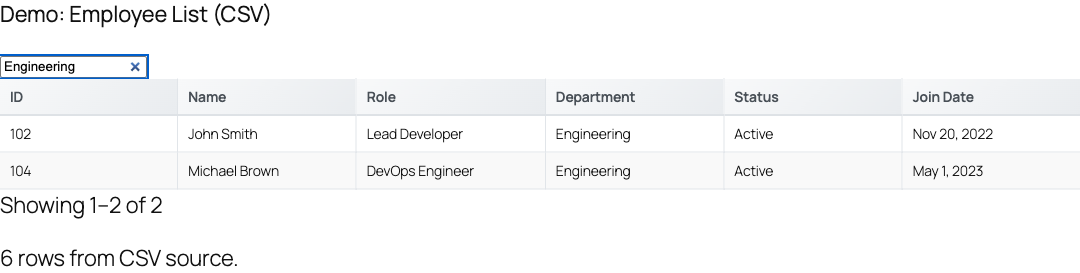
TableCrafter gives every table two complementary ways to narrow data: a global search box that scans every cell, and per-column filters that the plugin auto-builds from your data types (text, multi-select, date range, and number range). Both run instantly in the browser and respect each other.
How filtering works
Filtering happens entirely on the client after the table's data has loaded. There are two independent layers, both fed into a single getFilteredData() pass:
- Global search — one input that matches the typed term against every value in every column of a row (case-insensitive substring match). Controlled by the
searchattribute. - Column filters — a row of per-column controls whose type (text box, multi-select, date range, or number range) is auto-detected from the data in that column. Controlled by the
filtersattribute.
When both are active, search runs first and column filters are then applied to the matched rows (logical AND). Pagination resets to page 1 on every change, and the visible row count in the table footer reflects the filtered total.
Filtering operates on the data the table actually holds. If you limit columns with include / exclude, only the surviving columns can be searched or filtered.
Enabling search and filters
Both layers are toggled with shortcode attributes on [tablecrafter]. Note the asymmetric defaults: column filters are on by default, the global search bar is off by default.
| Attribute | Default | Purpose |
|---|---|---|
| search | false Optional | Show the global search bar above the table. |
| filters | true Optional | Show the auto-generated per-column filter row. |
| include | "" Optional | Comma-separated keys to keep — scopes which columns exist (and can be filtered). |
| exclude | "" Optional | Comma-separated keys to drop from the table. |
Accepted truthy values for the boolean attributes are true, 1, and yes (case-insensitive); anything else is treated as false.
// Search box on, default column filters kept
[tablecrafter source="https://api.example.com/products.json" search="true"]

// Column filters only, no global search bar
[tablecrafter source="https://api.example.com/products.json" filters="true" search="false"]

// Search only, disable the per-column filter row
[tablecrafter source="https://api.example.com/products.json" search="true" filters="false"]
Configuring from the admin builder
You don't have to hand-write the shortcode. Go to WP Admin → TableCrafter (menu slug tablecrafter-wp-data-tables), paste your data source, and use the checkboxes in the builder:
- Enable Search (
#tc-enable-search) — setssearch="true". - Enable Filters (
#tc-enable-filters, checked by default) — setsfilters="true". - Include / Exclude keys — scope the columns before generating the shortcode.
Click Preview Table to try search, sorting, and filters against live data, then copy the generated shortcode. The same toggles exist on the Gutenberg block and the Elementor widget, so the behaviour is identical across all three integration methods.
The global search bar
When search="true", TableCrafter inserts a search input at the top of the table wrapper (.tc-global-search-container wrapping input.tc-global-search). Typing matches the term as a lowercase substring against the string form of every value in a row, so a single query can hit data in any column.
- Input is debounced by 300 ms — the table re-renders only after you pause typing.
- Matching is case-insensitive substring (
includes), not whole-word or regex. - The input carries an
aria-labelfor screen readers; the placeholder is the translatableSearch...string.
Global search is the right tool for "find this value anywhere." For "show only rows where this column matches," reach for a column filter instead — it's narrower and pairs with the auto-detected type.
Auto-detected column filter types
With filters="true", TableCrafter renders a filter row (.tc-filters → .tc-filters-row, each control in a .tc-filter with a .tc-filter-label). It inspects the data in each column and picks the most useful control automatically:
| Detected type | Control rendered | Triggered when |
|---|---|---|
| daterange | Two <input type="date"> (From / To) | Values match a date pattern (e.g. YYYY-MM-DD, MM/DD/YYYY, ISO) and the field name is not sku/id/ref/code/serial/part. |
| numberrange | Min / Max number inputs | The column's values are all numeric. |
| multiselect | Checkbox dropdown of unique values | 2–20 distinct values and the field is not name/email/title/desc/phone/address/subject. |
| text | A single substring text box | Default fallback for everything else (free-text columns). |
Matching semantics per type: text is case-insensitive substring; multiselect is exact-value OR across checked options; daterange keeps rows whose parsed date falls within From–To (either bound optional); numberrange keeps rows whose parsed number is within Min–Max (either bound optional). Text and number inputs are debounced 300 ms; date and multiselect changes apply immediately.
The name-based guards are deliberate: they stop high-cardinality identifier columns from becoming date pickers and stop free-text columns like name or email from collapsing into a checkbox dropdown.
Multi-select filter behaviour
For a multi-select column, the button (.tc-multiselect-button) opens a fixed-position dropdown (.tc-multiselect-dropdown) listing each unique value as a checkbox (.tc-multiselect-option). Checking values keeps any row matching any selected value. The button label updates to the single value, or "N selected" for multiple. Clicking outside or scrolling closes the dropdown.
Clearing filters
A Clear All Filters button (.tc-clear-filters) sits above the filter row and resets every active column filter at once, returning to page 1. It clears column filters only — the global search term is cleared by emptying the search box. Individual filters also clear themselves when you blank their input or uncheck all options.
When the active search/filter combination matches nothing, the table body shows a single .tc-no-results cell reading "No results found" (translatable) rather than an empty table.
Filtered export
Export respects the current view. When export="true" is set, the CSV, clipboard, Excel (.xlsx), and PDF exports pull from getExportableData(), which returns the filtered dataset by default. So whatever your search term and column filters leave on screen is exactly what gets exported — not the full source.
[tablecrafter source="https://api.example.com/orders.json"
             search="true" filters="true" export="true" per_page=25]
Reacting to filter changes (developers)
If you instantiate TableCrafter in JavaScript, you can hook into filter activity with the onFilter config callback. It fires whenever a column filter is set or cleared and receives the active filters plus the resulting rows:
new TableCrafter('#my-table', {
  data: rows,
  globalSearch: true,
  filterable: true,
  onFilter: function (e) {
    console.log(e.filters, e.filteredData.length);
  }
});onFilter is a JavaScript instance callback, not a WordPress action/filter hook. The shortcode path doesn't expose it — use it only when you build a TableCrafter instance directly in JS.
Tips and limitations
- Filtering and search are client-side over the loaded rows. Very large datasets switch to chunked pagination, but matching still runs in the browser, so curate columns with
includeto keep tables lean. - Filter type detection samples the data; mixed or sparse columns may fall back to a text filter. There is currently no shortcode attribute to force a specific filter type per column from the shortcode.
- Search and column filters are additive (AND). To widen results, clear filters rather than stacking them.
Next, see sorting.html to combine filtering with multi-column sort, and exporting-data.html for full details on exporting the filtered view to CSV, Excel, and PDF.