Connect a CSV File
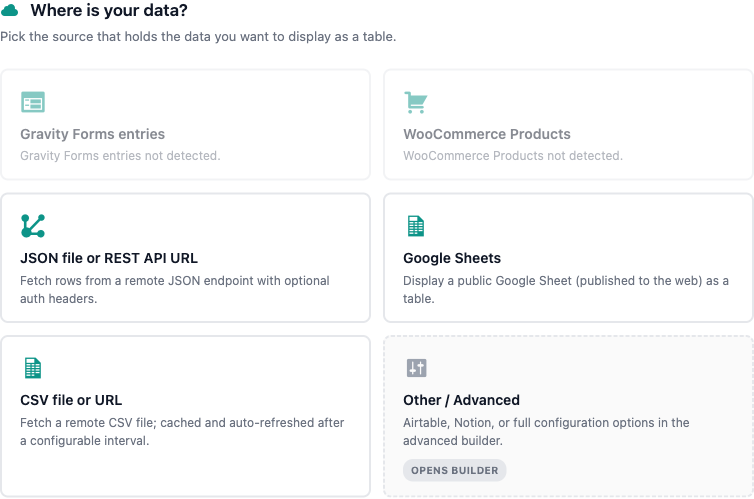
Point TableCrafter at any public CSV URL or a file you upload through the WordPress Media Library, and the plugin parses it server-side into a searchable, sortable, exportable table, no database storage required.
Overview
A CSV (comma-separated values) source is just a URL. When the source attribute of the [tablecrafter] shortcode ends in .csv, TableCrafter routes it to the dedicated CSV parser instead of the JSON path. The file is fetched by your server, parsed into an array of row objects keyed by the header columns, and rendered as an accessible HTML table. The same parser also handles uploaded CSV files and public Google Sheets exports.
CSV data is treated exactly like data from a JSON API once parsed: it benefits from live search, column filters, sorting, pagination, export, and Stale-While-Revalidate caching.
Two Ways to Connect a CSV
1. Hosted CSV URL
If your CSV is already published somewhere public (a CDN, an S3 bucket, a GitHub raw link, or any web server), paste the direct URL into the source attribute. The URL must end with the .csv extension so TableCrafter recognizes it as CSV:
[tablecrafter source="https://example.com/data/employees.csv"]2. Upload a CSV File
If your data lives in a local spreadsheet, upload it through WordPress and use the resulting attachment URL:
- Open the TableCrafter admin menu to access the visual shortcode builder.
- Click the Upload File (CSV/JSON) button. This opens the standard WordPress Media Library picker.
- Select an existing file or upload a new
.csvfrom your computer, then choose Use this Data Source. - The file's media URL is dropped into the data-source field automatically and a live preview is generated.
- Copy the generated shortcode and paste it into any page, post, or widget.
Uploading routes the file through the WordPress Media Library, so the CSV lands in your /wp-content/uploads/ folder and is served from your own domain. The shortcode then references that uploaded URL, it works identically to any other hosted CSV.
How the CSV Is Parsed
TableCrafter parses CSV server-side (in the TC_CSV_Source class) using PHP's native CSV reader. The behavior is fixed and predictable:
- Header row: The first non-empty line is always treated as the header. Each header cell becomes a column name (and the key for every value in that column).
- Delimiter: Fields are separated by a comma (
,). - Enclosure: Values may be wrapped in double quotes (
"), use quotes to include commas, line breaks, or quote characters inside a single field. - Escape character: The backslash (
\) is honored as the escape character. - BOM handling: A UTF-8 byte-order mark on the first header cell is stripped automatically, so files exported from Excel won't produce a garbled first column name.
- Blank lines: Empty lines anywhere in the file are skipped.
- Column-count mismatch: Any row whose number of fields does not match the header count is skipped to protect the table from malformed data.
The delimiter is comma-only and is not configurable through a shortcode attribute. If your file is semicolon- or tab-delimited (common in some European locales or TSV exports), re-save it as standard comma-separated CSV before connecting it, or rows will be skipped for column-count mismatch.
Example Input and Result
Given a CSV like the bundled employee demo:
# employees.csv
ID,Name,Role,Department,Status,Join Date
101,Sarah Connor,Project Manager,Operations,Active,2023-01-15
102,John Reese,Field Analyst,Security,Active,2022-08-03
TableCrafter builds a six-column table (ID, Name, Role, Department, Status, Join Date) with one row per data line. Column names from the header are also what you reference in the include, exclude, and sort attributes.
Google Sheets as CSV
Because Google Sheets can publish as CSV, the same source path handles it. Paste a standard Sheets URL (the sheet must be shared as "Anyone with the link can view") and TableCrafter normalizes it to the CSV export endpoint behind the scenes, preserving the tab gid if present:
[tablecrafter source="https://docs.google.com/spreadsheets/d/1BxiMVs0XRA5nFMdKvBdBZjgmUUqptlbs74OgvE2upms/edit"]No need to manually build the export?format=csv URL, the plugin rewrites it for you.
Shortcode Attributes for CSV Sources
CSV sources accept the full set of [tablecrafter] attributes. The most relevant ones for working with CSV data:
| Attribute | Required | Description |
|---|---|---|
| source | Required | URL to your CSV file (must end in .csv) or a public Google Sheet URL. |
| include | Optional | Comma-separated list of header names to show, in order (e.g. include="Name,Role,Status"). Everything else is hidden. |
| exclude | Optional | Comma-separated list of header names to hide (e.g. exclude="ID"). |
| search | Optional | Show the live search bar. true or false (default false). |
| filters | Optional | Show auto-detected column filters. true or false (default true). |
| per_page | Optional | Rows per page for client-side pagination (e.g. per_page="25"). |
| sort | Optional | Initial sort in column:direction format, e.g. sort="Join Date:desc". |
| export | Optional | Enable CSV/Excel/PDF/clipboard export of the current view. true or false (default false). |
Use the exact header text from row 1 (including spaces and capitalization) when naming columns in include, exclude, and sort. Join Date and join date are not the same column.
A Complete Example
Render an uploaded employee roster: hide the internal ID column, enable search, paginate at 10 rows, and sort newest hires first.
[tablecrafter
  source="https://example.com/wp-content/uploads/2026/employees.csv"
  exclude="ID"
  search="true"
  per_page="10"
  sort="Join Date:desc"
  export="true"]
To embed a table from a theme template instead of a post, wrap the shortcode in PHP:
echo do_shortcode('[tablecrafter source="https://example.com/data/employees.csv"]');Fetching, Security & Caching
Remote CSV files are retrieved by your server, not the visitor's browser, which sidesteps browser CORS restrictions entirely. A few behaviors worth knowing:
- SSRF protection: URLs resolving to local or private IP addresses are blocked before any request is made, so a CSV source can't be used to probe your internal network.
- SSL verification: HTTPS requests verify the certificate (using WordPress's bundled CA bundle when available) to prevent man-in-the-middle tampering.
- HTTP handling: Requests follow redirects and use a 30-second timeout. A non-200 response surfaces an error state on the front end rather than a blank table.
- Caching: Parsed results are cached with the Stale-While-Revalidate pattern, so tables load instantly while fresh data is fetched in the background.
To try CSV without leaving the admin, load the bundled Employee List (CSV) quick demo from the welcome screen or the builder's demo selector. It connects to the plugin's demo-data/employees.csv so you can see parsing, filtering, and export in action immediately.
Troubleshooting
- Some rows are missing: Those rows have a different field count than the header. Check for unescaped commas inside a value (wrap that value in double quotes) or a stray trailing column.
- Wrong column splits: The file is likely semicolon- or tab-delimited. Re-export as comma-delimited CSV.
- Garbled first column name: Almost always a BOM issue from older exports, TableCrafter strips the standard UTF-8 BOM, but a non-UTF-8 encoding can still cause this. Save the file as UTF-8.
- "Unable to load data" / unavailable state: The URL doesn't end in
.csv, isn't publicly reachable, or returned a non-200 status. Confirm the file opens in a private browser window with no login prompt.
Next, see google-sheets.html to publish a live spreadsheet as a table, or export.html to let visitors download the data as CSV, Excel, or PDF.