Auto-Refresh & Live Data
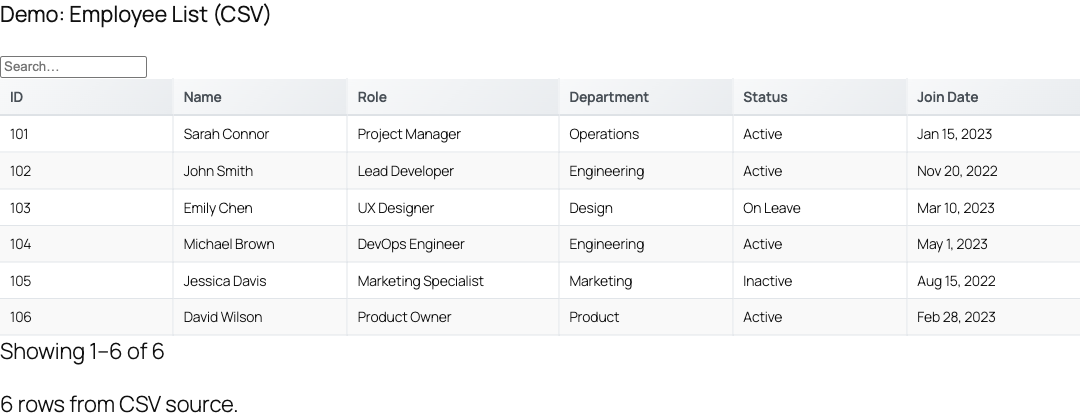
Turn any TableCrafter table into a live dashboard. Stale-While-Revalidate (SWR) caching serves cached data instantly while refreshing in the background, and the client-side Smart Auto-Refresh engine keeps visible tables current without disrupting the people reading them.
Two layers of freshness
TableCrafter keeps data fresh through two complementary mechanisms. They are independent and can be used together.
- SWR background caching (always on) operates on the server. Rendered HTML and fetched data are stored in WordPress transients and re-validated in the background, so page loads stay fast even when the upstream source is slow.
- Smart Auto-Refresh (opt-in) operates in the browser. When enabled, the table polls the data source on a configurable interval and re-renders in place, intelligently pausing while a visitor is actively using the table.
SWR keeps the first paint fast and the cache warm. Auto-refresh keeps an already-rendered table updating live. For a true real-time dashboard you typically want both, which is the default behavior when you add auto_refresh="true".
Enabling auto-refresh
Add auto_refresh="true" to the [tablecrafter] shortcode. With no other settings, the table refreshes every 5 minutes, shows the refresh indicator, and displays a "last updated" timestamp.
# Minimal live table, refreshes every 5 minutes (default)
[tablecrafter source="https://api.example.com/data.json" auto_refresh="true"]
For a faster-moving source, set an explicit interval and turn on the countdown so visitors can see when the next update lands.
# Live dashboard, refresh every 30 seconds, with countdown
[tablecrafter source="https://api.example.com/live-data.json"
  auto_refresh="true"
  refresh_interval="30000"
  refresh_countdown="true"]
Auto-refresh attribute reference
All auto-refresh attributes are parsed by the [tablecrafter] shortcode and mirrored as data-* attributes the front-end engine reads. Intervals are expressed in milliseconds.
| Attribute | Default | Description |
|---|---|---|
| auto_refresh | Optional false | Master switch. When true, the browser-side refresh cycle starts after the table renders. |
| refresh_interval | Optional 300000 | Time between refreshes in milliseconds. 30000 = 30s, 300000 = 5min, 3600000 = 1hr. |
| refresh_indicator | Optional true | Shows the visual control bar: spinning icon, status text, pause/resume button, and a manual "refresh now" button. |
| refresh_countdown | Optional false | Adds a live countdown ("Next: 24s") to the indicator showing time until the next refresh. |
| refresh_last_updated | Optional true | Shows a relative timestamp ("Updated 3m ago") so readers can judge data freshness. |
refresh_interval defaults to 300000 (five minutes) when set to 0 or an invalid value in the Gutenberg block. Auto-refresh also requires a fetchable source URL, if no data URL is available, the engine logs a warning and skips refreshing.
Smart interaction pausing
The defining feature of TableCrafter auto-refresh is that it gets out of the way. A background refresh that re-renders a table while someone is mid-scroll, mid-sort, or reading a filtered view is jarring, so the engine pauses automatically and resumes when the user steps away.
- Interaction pausing: the engine listens for
mouseenter,mousemove,click,scroll, andkeydownon the table container. Any of these pauses the cycle and it resumes after 5 seconds of inactivity. - Tab-visibility pausing: via the Page Visibility API, refreshing pauses when the browser tab is hidden and resumes when the visitor returns, no wasted requests on a backgrounded tab.
- State preservation: when a refresh does run, the visitor's current page, active filters, search term, and sort order are captured before the fetch and re-applied after the new data renders, so the view never jumps.
Smart pausing is enabled by default, there is no shortcode attribute to disable it, and you generally should not want to. It is what makes a 30-second refresh interval usable on a table people actually interact with.
Visual indicators and manual controls
When refresh_indicator="true" (the default), TableCrafter inserts a small status bar above the table:
- A spinning 🔄 icon and status text ("Auto-refresh active") that switches to a paused state ("Auto-refresh paused", static icon) when pausing kicks in.
- A pause/resume toggle (⏸️ / ▶️) for manual control, distinct from the automatic smart pause.
- A manual refresh button (↻) that fetches immediately and resets the interval timer.
- Optional countdown and last-updated readouts, controlled by
refresh_countdownandrefresh_last_updated.
# Financial table with full visible controls and timestamp
[tablecrafter source="https://api.example.com/stocks.json"
  auto_refresh="true"
  refresh_interval="60000"
  refresh_indicator="true"
  refresh_last_updated="true"]
Resilience: retries and backoff
Live sources fail intermittently. The auto-refresh engine handles transient errors gracefully so a single bad response does not break the table.
- On a failed refresh, it retries up to 3 times using exponential backoff (roughly 2s, 4s, 8s between attempts).
- If all retries fail, auto-refresh stops cleanly rather than hammering the source, the last good data stays on screen.
- A successful refresh resets the failure counter, so an isolated blip never escalates.
Configuring in the Gutenberg block
Every auto-refresh option is available without writing a shortcode. In the block editor, add a TableCrafter block and open the Auto-Refresh Settings panel in the block sidebar:
- Enable Auto-Refresh, the master toggle.
- Refresh Interval (milliseconds), numeric field; mirrors
refresh_interval. - Show Refresh Indicator, Show Countdown Timer, and Show Last Updated, toggles mapping to the matching shortcode attributes.
Changes preview live in the editor, so you can confirm the indicator and interval before publishing.
SWR background caching
Independent of the browser-side refresh, every rendered table is cached server-side using a Stale-While-Revalidate strategy handled by the TC_Cache class:
- On first render, TableCrafter fetches the source synchronously, renders the HTML, and stores both the HTML and the parsed data in a transient for up to 1 hour (
HTML_CACHE_TTL). - On subsequent loads, the cached HTML is served instantly. If the cache is older than the 5-minute stale threshold, a background re-fetch is scheduled (
tc_refresh_single_source) so the visitor is never blocked waiting on a slow third-party API. - The cache key is derived from the source plus the rendering options (
include,exclude,search,filters,export,per_page,sort) and the plugin version, so different table configurations never collide.
An hourly WordPress cron event (tc_refresher_cron) warms the cache for tracked source URLs, keeping frequently used tables hot. SWR runs whether or not auto-refresh is enabled.
Managing the cache with WP-CLI
TableCrafter registers a wp tablecrafter command for cache maintenance on the server:
# Clear all TableCrafter caches (HTML, data, export transients)
wp tablecrafter clear-cache

# Re-warm the cache for all tracked source URLs
wp tablecrafter warm-cache
Monitoring data-source health
For live tables, knowing when a source breaks matters as much as refreshing it. The TC_Data_Source_Health_Monitor class (added in 3.5.3) checks registered sources and can alert you when one degrades or fails, addressing the silent breakage problem where an upstream API dies and a table quietly goes stale.
- Health checks return a status of
healthy,degraded, orfailed, along with response time, timestamp, and the specific checks performed. - Structure validation: if you register a source with
expected_keys, a successful response that is missing those keys is flaggeddegradedrather than passing silently. - History tracking: results are stored in transients (up to 100 entries, retained 7 days) so you can review a source's recent reliability and query it by time window.
- Notifications: when a failure threshold is reached, the monitor can fire a webhook (fire-and-forget JSON payload) and/or send email alerts to configured recipients.
The monitor is a singleton, retrieved and configured programmatically:
// Register a source and route alerts to a webhook + email
$monitor = TC_Data_Source_Health_Monitor::get_instance();
$monitor->register_source( 'https://api.example.com/live-data.json', [
    'expected_keys' => [ 'price', 'symbol' ],
] );
$monitor->configure_notifications( [
    'threshold' => 1,
    'webhook'   => 'https://hooks.example.com/tablecrafter',
    'email'     => [ 'ops@example.com' ],
] );
$result = $monitor->check_health( 'https://api.example.com/live-data.json' );The webhook payload includes the source URL, status, response time, error message, a severity level, and the plugin version, ready to drop into Slack, PagerDuty, or any incident pipeline via an inbound webhook.
Choosing an interval
Match the refresh cadence to how fast your data actually changes, and keep upstream rate limits in mind.
| Use case | Suggested interval |
|---|---|
| Crypto / stock tickers | 30000 - 60000 (30s - 1min) |
| Inventory / order status | 300000 (5min, default) |
| Sports scores / live events | 30000 (30s) |
| Reports / analytics dashboards | 900000 - 3600000 (15min - 1hr) |
Because smart pausing suppresses refreshes during interaction and on hidden tabs, short intervals are far less wasteful than they sound, most polls happen only while a table is visible and idle.
Next, see data-sources.html for connecting JSON, CSV, and Google Sheets sources, and caching-performance.html for tuning SWR and the cache-warming cron.