REST API Authentication
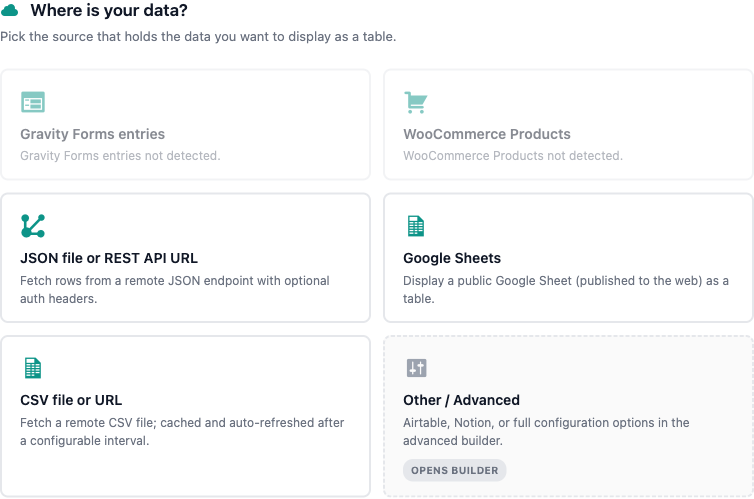
TableCrafter pulls table data from remote REST and JSON endpoints. This page documents exactly how the plugin authenticates those requests: Bearer-token auth for Airtable, query-string API keys for generic JSON APIs, and secure, encrypted storage for your Personal Access Token.
How authentication works in TableCrafter
Every table is rendered by the [tablecrafter] shortcode, which takes a single source attribute pointing at your data. The plugin inspects that URL and routes it to the right fetcher:
- Airtable sources (URLs starting with
airtable://) are fetched through the Airtable REST API with aAuthorization: Bearerheader. - Generic JSON/REST sources (any
https://endpoint returning JSON) are fetched as-is. Authentication is carried in the URL itself, typically as a query-string API key. - Google Sheets and CSV sources are fetched as published/public documents and do not use API authentication.
The only authentication scheme that injects an HTTP header on your behalf is the Airtable Bearer flow. For all other REST endpoints, TableCrafter fetches the exact URL you supply, so any credential must live in the URL (a query parameter) or the endpoint must be public.
Airtable: Bearer token authentication
Airtable is a first-class source. TableCrafter calls https://api.airtable.com/v0/{baseId}/{tableName} and sends your Airtable Personal Access Token (PAT) as a Bearer credential. The request sent to Airtable looks like this:
# Request TableCrafter makes on your behalf
GET https://api.airtable.com/v0/appSampleBaseId/Employees
Authorization: Bearer patXXXXXXXXXXXXXX
Content-Type: application/json
You reference an Airtable base with the airtable:// URL scheme. The format is:
airtable://{baseId}/{tableName}?token={pat}&view={viewId}Airtable URL parameters
| Component | Required | Description |
|---|---|---|
| baseId | Required | The Airtable Base ID, e.g. appSampleBaseId. Read from the host segment of the URL. |
| tableName | Required | The table name or table ID, e.g. Employees. Read from the path segment. |
| token | Optional | Your Personal Access Token. If omitted, TableCrafter falls back to the encrypted token saved in settings (recommended). |
| view | Optional | An Airtable view ID to filter and order records to match a saved view. |
Recommended: store the token once, omit it from the URL
Putting a token in a shortcode means it can appear in post content and revisions. The safer pattern is to save your PAT once in the admin, then reference the base without a token parameter:
// Token stored in settings, never exposed in page content
[tablecrafter source="airtable://appSampleBaseId/Employees"]

// With an optional view and selected columns
[tablecrafter source="airtable://appSampleBaseId/Employees?view=viwGridView" include="Name,Role,Email" search="true"]
When no token is present in the URL, TableCrafter loads the value of the tablecrafter_airtable_token option, decrypts it, and uses it as the Bearer credential.
Saving your Airtable token
- In wp-admin, open TableCrafter (the top-level menu, slug
tablecrafter-wp-data-tables). - In the shortcode builder, click the Airtable connect button.
- Paste your Personal Access Token and save. The value is encrypted before it is written to the database.
Saving is handled by a nonce-protected AJAX action (tc_save_airtable_token) that requires the manage_options capability, so only administrators can store credentials. The raw token is never persisted in clear text; it is encrypted with the plugin's security layer and only decrypted in memory at request time.
Use an Airtable Personal Access Token scoped to a single base with read-only data.records:read access. TableCrafter only reads records, so a minimal scope limits exposure if the token is ever leaked.
Generic REST / JSON: query-string authentication
For any other REST endpoint, set source to the full HTTPS URL of the JSON resource. TableCrafter fetches that exact URL, so APIs that authenticate via a query-string key work out of the box:
// API key passed as a query parameter
[tablecrafter source="https://api.example.com/v1/orders?api_key=YOUR_KEY" root="data"]

// Token-style query parameter
[tablecrafter source="https://api.example.com/report.json?access_token=YOUR_TOKEN"]
The endpoint must return a JSON array of objects (or an object you can drill into with the root attribute, e.g. root="data.items"). The response is parsed and cached for one hour.
A query-string key embedded in a shortcode is visible to anyone who can view the page source or post content, and it is sent in the request URL. Only use this method with low-privilege, read-only keys, and prefer endpoints scoped to non-sensitive data.
What about custom request headers?
To be precise about the plugin's surface: the [tablecrafter] shortcode does not expose attributes for arbitrary request headers, a custom Authorization header, or an X-API-Key header on generic REST sources. There is no headers, auth, or api_key shortcode attribute.
Header-based Bearer authentication is implemented and supported, but it is wired specifically to the Airtable integration. If your API only accepts an Authorization or X-API-Key header (and rejects query-string keys), the supported approaches are:
- Use the Airtable source if your data lives in Airtable.
- Place a small proxy endpoint on your own server that adds the required header, then point
sourceat the proxy. - Switch the upstream API to a query-string credential where the provider supports it.
Transport security and SSRF protection
Every remote fetch goes through TableCrafter's hardened HTTP layer, which applies the following safeguards regardless of authentication method:
| Protection | Behavior |
|---|---|
| SSL verification | Peer and host certificate verification are enabled; requests use the WordPress bundled CA bundle when available. |
| SSRF blocking | URLs resolving to local or private IP ranges are rejected before any request is sent, returning a security_error. |
| Credential redaction | When requests are logged, query strings are masked (shown as a parameter count) so tokens and keys never appear in logs. |
| Retry safety | Authentication failures (4xx) are not retried; only transient errors and rate limits (429) are retried with backoff. |
Always use https:// source URLs. Because query-string keys travel in the URL, TLS is what keeps them confidential in transit, and SSL verification is enforced on every fetch.
Authentication error reference
When an Airtable request fails, TableCrafter surfaces a specific error so you can pinpoint the credential problem:
| HTTP status | Meaning | Fix |
|---|---|---|
| 401 | Invalid token | Check or regenerate your Personal Access Token and re-save it. |
| 403 | Access denied | Grant the token access to the specific base and table. |
| 404 | Base or table not found | Verify the Base ID and table name in your airtable:// URL. |
| 429 | Rate limit exceeded | Wait and retry; Airtable results are cached for 5 minutes to reduce calls. |
Generic JSON sources that fail authentication typically return a non-200 status, surfaced as an HTTP error, or an unexpected body, surfaced as a JSON parse error. Confirm your key is valid by opening the full source URL directly in a browser.
Caching and credentials
Successful responses are cached: one hour for generic REST/JSON sources and five minutes for Airtable (to respect its rate limits). The cache key is derived from the source URL and display options, so the URL, including any query-string key, is part of what determines a cache hit. Rotating a key or changing the token does not invalidate an old cache entry until it expires, so allow up to the cache window for a credential change to take effect, or change the source URL to force a fresh fetch.
Next, see airtable-source.html for the full Airtable setup walkthrough, and json-rest-sources.html for shaping nested responses with the root and include attributes.