Connect Google Sheets
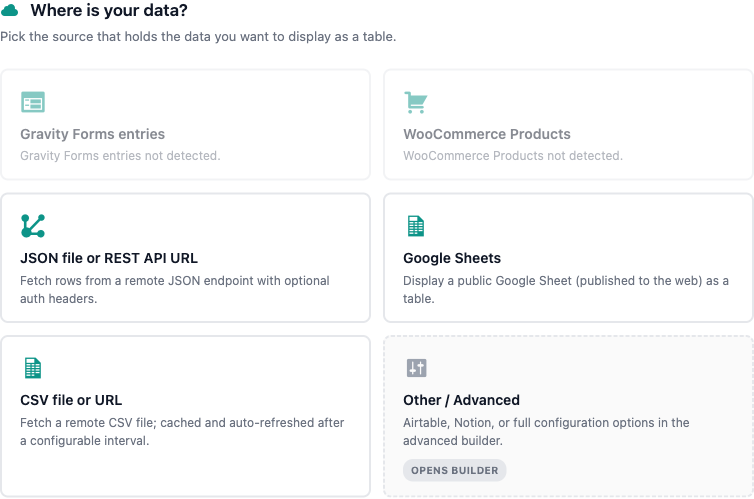
TableCrafter turns any shared Google Sheet into a fast, accessible WordPress table. Paste the normal sheet link and the plugin automatically converts it to the CSV export endpoint, parses the rows, and keeps them fresh with built-in caching and optional auto-refresh.
How TableCrafter reads a Google Sheet
You do not need an API key or a service account. TableCrafter treats a Google Sheet as a CSV data source. When the source URL matches a Google Sheets address, the data fetcher routes it to the CSV source handler (TC_CSV_Source), which rewrites the link to the sheet's CSV export endpoint, downloads it over HTTPS, and parses the first row as column headers.
Concretely, a link like https://docs.google.com/spreadsheets/d/SHEET_ID/edit#gid=0 is normalized to:
https://docs.google.com/spreadsheets/d/SHEET_ID/export?format=csv&gid=0The plugin extracts the spreadsheet ID from the path and, if a gid is present in the query string, preserves it so the correct tab is exported. The downloaded CSV is converted to an array of row objects keyed by the header cells, with any UTF-8 byte-order mark stripped from the first header. Rows whose column count does not match the header row are skipped, so a trailing blank line or a malformed row will not corrupt the table.
Because the sheet is read as CSV, every cell arrives as text. Numeric sorting still works (the sort routine detects numeric values), but formatted values such as currency or dates appear exactly as Google exports them.
Publish or share the sheet correctly
TableCrafter fetches the export URL anonymously from your server. The sheet must therefore be readable without a Google login. You have two options:
- Share link access: In Google Sheets, choose Share, then set General access to Anyone with the link with the Viewer role. This is what the admin builder prompts for.
- Publish to the web: Use File > Share > Publish to web and publish the sheet (or a specific tab). Published sheets are reliably reachable by the CSV export endpoint.
A private or "restricted" sheet returns a Google sign-in page instead of CSV. When that happens the fetch fails with an HTTP error and the table cannot render. If your table is empty or shows a load error, re-check the sharing setting first.
Add a sheet from the admin builder
The quickest path is the visual builder under the TableCrafter admin menu:
- Open TableCrafter in the WordPress admin sidebar.
- In the Settings card, click the Google Sheets button.
- Paste your sheet URL into the prompt. The dialog reminds you the sheet must be set to "Anyone with the link can view."
- The URL fills the Data Source URL field and a preview is generated automatically so you can confirm the rows look right.
- Toggle Search, Filters, and Export as needed, then copy the generated shortcode.
You can paste the full edit URL (with /edit#gid=...) directly. Normalization to the CSV export endpoint happens at fetch time, so you do not need to build the export link yourself.
The shortcode
TableCrafter registers a single shortcode, [tablecrafter]. Point its source attribute at your sheet link:
[tablecrafter source="https://docs.google.com/spreadsheets/d/SHEET_ID/edit#gid=0" search="true" per_page="25"]To target a specific tab, include its gid in the link exactly as Google shows it in the address bar when that tab is selected:
[tablecrafter source="https://docs.google.com/spreadsheets/d/SHEET_ID/edit#gid=1894xxxxx"]In a theme template you can render the same table with PHP:
echo do_shortcode('[tablecrafter source="https://docs.google.com/spreadsheets/d/SHEET_ID/edit#gid=0"]');Useful attributes for sheet tables
These are the attributes you will reach for most often with a Google Sheet. All of them are optional except source.
| Attribute | Required | Description |
|---|---|---|
| source | Required | The Google Sheet link (edit URL is fine). Detected by its docs.google.com/spreadsheets/d/... pattern. |
| search | Optional | Show the live search box. true or false (default false). |
| filters | Optional | Show per-column filters. Defaults to true. |
| per_page | Optional | Rows per page for client-side pagination. 0 shows all rows. |
| include | Optional | Comma-separated header names to show. Supports aliasing with Header:New Label. |
| exclude | Optional | Comma-separated header names to hide. |
| sort | Optional | Initial sort in column:direction form, e.g. Price:desc. |
| export | Optional | Enable CSV/clipboard export of the current view. Defaults to false. |
Use the sheet's header row text for include, exclude, and sort. The first CSV row becomes your column keys, so a header cell of Order Date is referenced as Order Date.
Keeping data fresh: caching and refresh
TableCrafter never copies your sheet into the database. Instead it caches the rendered result and revalidates it, so pages stay fast while data stays current. Two layers are involved:
- Server cache (Stale-While-Revalidate): The rendered table HTML and parsed rows are stored in a WordPress transient for up to one hour. If a cached entry is older than five minutes when the page is requested, TableCrafter serves the cached copy immediately and schedules a one-off background event (
tc_refresh_single_source) to re-fetch the sheet, so the next visitor sees updated rows without any wait. - Hourly sweep: A recurring WordPress cron event (
tc_refresher_cron) runs every hour to keep tracked sources warm in the background.
The underlying fetched CSV is also cached at the data layer for one hour, keyed by the source URL. The net effect: edits in your Google Sheet typically appear on the site within a few minutes of the next page view, not instantly, by design.
Live auto-refresh in the browser
For dashboards that should update while a visitor is watching, enable client-side auto-refresh. This polls the sheet through TableCrafter's server-side proxy on an interval and re-renders the table in place.
[tablecrafter source="https://docs.google.com/spreadsheets/d/SHEET_ID/edit#gid=0"
auto_refresh="true" refresh_interval="60000" refresh_countdown="true"]| Attribute | Default | Description |
|---|---|---|
| auto_refresh | false | Turn on automatic in-browser data updates. |
| refresh_interval | 300000 | Refresh period in milliseconds (default 5 minutes). |
| refresh_indicator | true | Show the visual refresh control. |
| refresh_countdown | false | Show a countdown to the next refresh. |
| refresh_last_updated | true | Show an "Updated X ago" timestamp. |
Auto-refresh requests go through TableCrafter's secure proxy (the tc_proxy_fetch handler), which adds SSRF protection and respects the same one-hour data cache. Setting a very short refresh_interval does not bypass that cache, so you will not hammer Google's servers.
Troubleshooting
- Empty table or load error: The sheet is likely not shared publicly. Set access to "Anyone with the link" (Viewer) or publish it to the web. Administrators see a detailed error helper inline; logged-out visitors see a friendly fallback message.
- Wrong tab shows: Make sure the
gidin your link matches the tab you want. Open that tab in Google Sheets and copy the URL from the address bar. - Columns missing or shifted: Ensure the first row of the sheet is a clean header row and that rows do not contain stray extra commas. Rows whose cell count differs from the header are skipped.
- Edits not appearing immediately: This is the SWR cache at work. Reload after a minute or two, or enable
auto_refreshfor near-real-time updates.
Only public sheet links are supported. Private sheets, those requiring a specific Google account, or organization-restricted files cannot be fetched server-side and will not render.
Next steps
If your data already lives in a JSON API instead of a sheet, see connect-json-api.html. To let visitors download the table they are viewing, continue with data-export.html.