Gutenberg Block
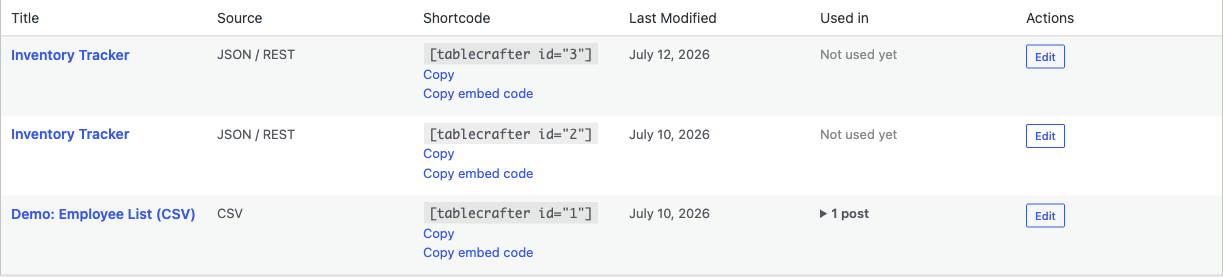
TableCrafter ships a native WordPress block, tablecrafter/data-table, that lets you build dynamic data tables visually in the block editor, configure everything from the sidebar Inspector and watch a true server-rendered live preview update as you type.
Overview
The block is the recommended integration method for modern WordPress sites (5.0+) and block-based themes. It is a thin visual wrapper over the same engine that powers the [tablecrafter] shortcode: every control in the block sidebar maps one-to-one to a shortcode attribute, and the frontend output is identical. There is no separate data store, the block persists a small set of attributes in the post content and resolves the data at render time, so your database stays clean.
The block is a dynamic block. Its JavaScript save() function returns null, and all HTML is produced on the server by a render_callback. This guarantees the frontend always reflects current settings and the latest data, with no stale markup saved in the post.
How the Block Is Registered
TableCrafter registers the block in PHP on the init hook (it does not use a block.json file). The registration wires up the editor script, shared frontend stylesheet, the server render callback, and the full attribute schema:
register_block_type('tablecrafter/data-table', [
    'editor_script'   => 'tablecrafter-block',
    'style'           => 'tablecrafter-style',
    'render_callback' => [$this, 'render_block_callback'],
    'attributes'      => [ /* source, root, search, ... */ ],
]);
Editor behavior lives in assets/js/block.js, which calls blocks.registerBlockType('tablecrafter/data-table', …) with a matching title of "TableCrafter", a table-grid SVG icon, and the widgets category. The server callback (render_block_callback) auto-generates a unique container id when one is missing and then delegates straight to the shortcode renderer (render_table), so block output and shortcode output share the same caching, sanitization, and markup.
Inserting the Block
- Edit any post or page and click the + (block inserter).
- Search for TableCrafter (found under the Widgets category) and insert it.
- Open the block sidebar (the Settings gear) to reveal the Inspector panels.
- Paste a data source URL, or pick a bundled demo, and the live preview renders immediately.
If you prefer not to type a URL, use the Demo Data Sources dropdown or the Upload CSV/JSON File button (backed by the WordPress Media Library) to populate the source field in one click.
Sidebar Controls (Data Settings)
The first Inspector panel, Data Settings, is open by default and contains the core configuration. Each control writes directly to a block attribute.
| Control | Attribute | Type | What it does |
|---|---|---|---|
| Data Source URL | source | Required | URL to a JSON API, CSV file, or public Google Sheet. Must be publicly accessible. |
| Upload CSV/JSON File | source | Optional | Opens the Media Library and sets source to the uploaded file URL. |
| Demo Data Sources | source | Optional | Dropdown of bundled samples (JSON, CSV, Google Sheets, Airtable) for quick testing. |
| Data Root Path | root | Optional | Dot-notation path to a nested array in the JSON response (e.g. data.items, response.results). |
| Enable Search | search | Optional | Adds a real-time global search bar. Defaults to off. |
| Enable Column Filters | filters | Optional | Adds per-column filters (dropdowns for text, ranges for numbers, date pickers for dates). Defaults to on. |
| Enable Export Tools | export | Optional | Adds CSV download and copy-to-clipboard buttons that respect active filters/search. Defaults to off. |
| Rows Per Page | per_page | Optional | Enables pagination at the given page size. 0 shows all rows. |
| Include Columns | include | Optional | Comma-separated allow-list of field names to display (e.g. name,email,status). |
| Exclude Columns | exclude | Optional | Comma-separated list of field names to hide (e.g. id,internal_notes). |
Sidebar Controls (Auto-Refresh Settings)
The second panel, Auto-Refresh Settings, is collapsed by default. Turning on Enable Auto-Refresh reveals the remaining controls, they stay hidden while auto-refresh is off to keep the sidebar focused. This turns a static table into a live dashboard that periodically re-fetches its source.
| Control | Attribute | Type | What it does |
|---|---|---|---|
| Enable Auto-Refresh | auto_refresh | Optional | Master switch for live updates. Defaults to off. |
| Refresh Interval (milliseconds) | refresh_interval | Optional | How often to re-fetch, in ms. Default 300000 (5 minutes); e.g. 30000 = 30s. |
| Show Refresh Indicator | refresh_indicator | Optional | Shows the spinner plus pause/resume and manual-refresh controls. Defaults to on. |
| Show Countdown Timer | refresh_countdown | Optional | Displays a live countdown to the next refresh. Defaults to off. |
| Show Last Updated | refresh_last_updated | Optional | Shows an "Updated X minutes ago" timestamp. Defaults to on. |
The panel footer includes a Documentation link out to the project repository for additional help.
Live Preview
The block's edit() function renders its preview through wp.serverSideRender, pointing at the tablecrafter/data-table block with the current attributes. This means the editor shows the real server-rendered table, the same HTML visitors will see, rather than a placeholder mock-up. Every attribute change triggers a fresh server render.
Because the preview HTML is injected by SSR after the React render, the block script re-initializes the interactive layer (search, filters, export, pagination, auto-refresh) on the client once the markup lands. It does this by reading the data-* attributes on the rendered .tablecrafter-container, including data-source, data-search, data-filters, data-export, data-per-page, data-auto-refresh, and data-refresh-interval, and constructing a fresh TableCrafter instance whenever any of them change.
Gutenberg often renders post content inside an <iframe>. The block script handles this by walking into editor iframes, using a MutationObserver to catch newly injected SSR content and attribute changes, plus a periodic safety scan, so the preview stays in sync even in the iframe-based site/block editors.
Block Markup and the Shortcode Equivalent
In the post content, the block is stored as a comment-delimited dynamic block holding only its attributes, no rendered table HTML:
<!-- wp:tablecrafter/data-table {"source":"https://api.example.com/users.json","search":true,"per_page":10} /-->Since the block and shortcode share one render path, the example above is exactly equivalent to:
[tablecrafter source="https://api.example.com/users.json" search="true" per_page="10"]If you ever need to move a configured table into a classic theme or a template file, you can reproduce any block 1:1 with the matching shortcode attributes.
Requirements and Notes
- WordPress 5.0+ with the block editor enabled. The plugin guards registration with a
function_exists('register_block_type')check, so it degrades gracefully on classic-editor-only setups. - The data
sourcemust be publicly reachable; the URL is sanitized withesc_url_rawbefore use, and an empty source renders a friendly placeholder instead of an error. - External requests pass through TableCrafter's secure server-side proxy (using the localized AJAX URL and a
tc_proxy_nonce) to bypass CORS and apply SSRF protection. - The block enqueues the shared
tablecrafter-stylestylesheet, so frontend and editor preview styling match automatically.
Next, see shortcodes.html for the full attribute reference shared by the block, or elementor-widget.html if you build with Elementor.