Migrating from wpDataTables
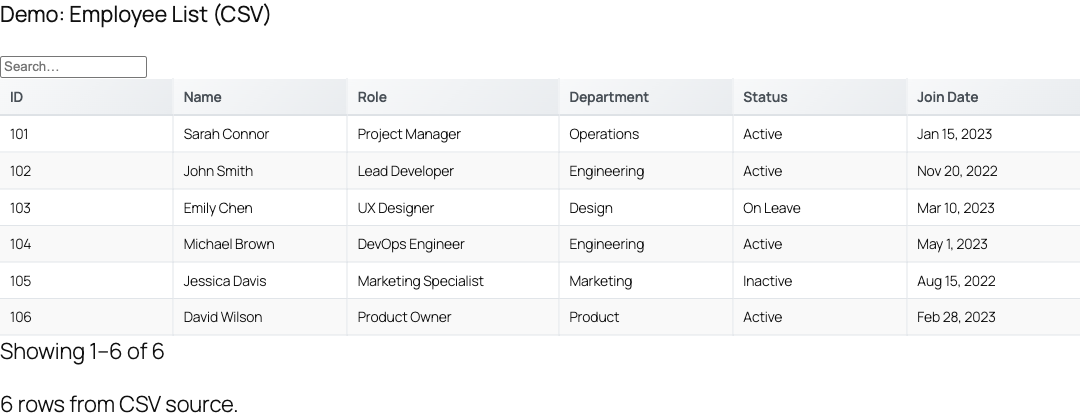
TableCrafter and wpDataTables solve the same problem from opposite directions: wpDataTables stores tables in your database, while TableCrafter renders live data straight from a URL with no database table at all. This guide maps the concepts honestly so you know what carries over and what changes.
Positioning: two different philosophies
Before mapping settings one-to-one, understand the architectural difference, because it determines which of your tables migrate cleanly and which don't.
wpDataTables is a table builder. You create a table object in the WordPress admin, it stores rows and column configuration in custom database tables (or links to a SQL query), and you embed it by numeric ID. The data lives inside WordPress.
TableCrafter is a live data viewer. There is no stored table. The [tablecrafter] shortcode points at a source URL (JSON API, CSV file, Google Sheet, or Airtable base), fetches it, and renders a table on the page. Caching is Stale-While-Revalidate (SWR) using WordPress transients, so the database stays clean. The plugin's own README frames it as a way to show "real-time data without database bloat."
If your wpDataTables tables are manually entered grids that exist only inside WordPress, there is no source URL to point at. You will first export that data to a CSV or Google Sheet, then point TableCrafter at it. This is the single biggest difference to plan around.
Concept mapping at a glance
Here is how the mental model translates. Treat the right column as "the closest real TableCrafter capability," not a drop-in equivalent.
| wpDataTables concept | TableCrafter equivalent |
|---|---|
| Stored table object + numeric ID | No stored object. A [tablecrafter] shortcode with a source URL; optional id attribute for targeting one instance |
| Manual table (rows typed in admin) | Export to CSV / Google Sheet, then reference that URL as source |
| Table from Excel/CSV file | source ending in .csv (parsed by the CSV source handler) |
| Table from Google Sheets | source pointing at a docs.google.com/spreadsheets/... URL |
| Table from MySQL query | No direct SQL connector. Expose the query result as a JSON endpoint (e.g. a REST route) and use that URL as source |
| Table from JSON / API (Pro) | Native: any public JSON URL. Use root to point at a nested array |
| Server-side / AJAX processing | Live fetch + SWR transient cache + optional auto_refresh |
| Column visibility settings | include / exclude attributes |
| Sorting & default sort order | sort="column:direction" + clickable .tc-sortable headers |
| Search box + column filters | search="true" and filters="true" |
| Pagination / rows per page | per_page (client-side pagination) |
| Export to Excel / CSV / PDF | export="true", CSV, XLSX, and PDF via the export handler |
| Responsive / mobile mode | Built-in mobile card view (.tc-cards-container); no setting required |
From numeric IDs to source URLs
In wpDataTables you embed with an ID, like [wpdatatable id=5]. TableCrafter has no table registry, so there is no equivalent numeric ID to look up. Instead you declare the data inline on the shortcode.
<!-- wpDataTables -->
[wpdatatable id=5]

<!-- TableCrafter equivalent -->
[tablecrafter source="https://example.com/wp-json/myapp/v1/products"]
The id attribute exists in TableCrafter, but it serves a different purpose: it sets the container's HTML id for CSS/JS targeting and to keep cache keys distinct. It is not a stored table reference, and it is optional (one is auto-generated if you omit it).
Shortcode attribute reference
These are the real, verified attributes accepted by [tablecrafter]. Map your wpDataTables column/feature settings onto them.
| Attribute | Required | Maps from / does |
|---|---|---|
| source | Required | URL to your JSON API, CSV file, Google Sheet, or airtable:// base. Replaces the wpDataTables data-source picker |
| root | Optional | Dot path to the array inside a JSON response, e.g. root="data.results" |
| include | Optional | Comma-separated columns to show, the "visible columns" setting |
| exclude | Optional | Comma-separated columns to hide |
| search | Optional | Global search box (true/false, default off) |
| filters | Optional | Per-column filter row (true/false, default on) |
| per_page | Optional | Rows per page, the pagination "entries" setting (0 = no paging) |
| sort | Optional | Default sort as column:direction, e.g. sort="price:desc" |
| export | Optional | Show export controls (CSV / XLSX / PDF), default off |
| auto_refresh | Optional | Re-fetch the source on an interval, the closest match to server-side live data |
| refresh_interval | Optional | Refresh period in milliseconds (default 300000 = 5 min) |
| refresh_indicator | Optional | Show a "refreshing" indicator (default on) |
| refresh_countdown | Optional | Show a countdown to the next refresh (default off) |
| refresh_last_updated | Optional | Show a "last updated" timestamp (default on) |
| id | Optional | Container HTML id; auto-generated if omitted |
There is no editable attribute and no "save back to the database" feature. The .tc-editable class exists for inline-edit UI in the admin playground, but the frontend shortcode renders a read-only view of a remote source. If a wpDataTables table relied on front-end editing that persists to MySQL, that workflow does not carry over.
Migrating each data-source type
Manual / Excel-imported tables
Export the wpDataTables data to CSV (or paste it into a Google Sheet you control), host it somewhere your site can reach, then point at it:
[tablecrafter source="https://example.com/wp-content/uploads/staff.csv" search="true" export="true"]Google Sheets tables
This is the cleanest migration. Use the normal share URL, the data fetcher detects docs.google.com/spreadsheets/ automatically and routes it through the CSV source handler.
[tablecrafter source="https://docs.google.com/spreadsheets/d/1BxiMVs0XRA5nFMdKvBdBZjgmUUqptlbs74OgvE2upms/edit#gid=0" filters="true"]MySQL-query tables
TableCrafter has no SQL connector. Re-expose the query result as JSON, a custom WordPress REST route is the typical path, and reference that endpoint. Use root if your payload wraps the rows in an envelope.
[tablecrafter source="https://example.com/wp-json/reports/v1/orders" root="data" per_page=25 sort="order_date:desc"]Airtable
Not a wpDataTables source, but worth knowing if you are consolidating tools. Use the airtable:// protocol; save your API token once under WordPress Admin → TableCrafter (stored in the tablecrafter_airtable_token option):
[tablecrafter source="airtable://appSampleBaseId/Employees"]Export: what stays, what changes
wpDataTables ships export buttons (Excel, CSV, PDF, Copy, Print) on each table. TableCrafter consolidates this into one attribute, export="true". The export handler genuinely produces three formats, its SUPPORTED_FORMATS are csv, xlsx, and pdf, and it builds real XLSX (OpenXML) and PDF documents server-side, respecting the currently applied filters.
[tablecrafter source="https://example.com/data.json" export="true" search="true"]What you lose: there is no Copy/Print button pair and no per-format toggle, enabling export exposes the available formats together. If you customize export output programmatically, the tc_export_templates filter is the real extension point.
Styling and theming differences
wpDataTables themes are chosen per-table in the admin. TableCrafter has a single rendered structure you style with CSS. The real, stable class hooks are:
.tablecrafter-container, the outer wrapper (carries all thedata-*config attributes).tc-table, the table element;.tc-sortableon sortable headers.tc-global-searchand.tc-filters, the search box and filter row.tc-pagination, the pager controls.tc-cards-container, the mobile card layout that replaces horizontal scroll on small screens
For high-contrast / accessibility theming the stylesheet exposes CSS custom properties, --tc-border-color, --tc-text-color, --tc-bg-color, and --tc-focus-color, which you can override in your own theme CSS rather than picking from a preset list.
Migrate one table first, confirm the look, and copy that CSS to the rest. Because every TableCrafter table shares the same markup, your styling is written once and applies everywhere, unlike per-table wpDataTables themes.
Page builders and blocks
Both plugins integrate with the block editor and Elementor. In TableCrafter the Gutenberg block is tablecrafter/data-table (search "TableCrafter" in the block inserter), and there is a dedicated Elementor widget with live data preview in the editor. The block exposes the same options as the shortcode, source, search, filters, per_page, export, and the auto-refresh group, so you can rebuild embeds visually instead of hand-writing shortcodes.
A realistic migration checklist
- Inventory your wpDataTables tables and classify each: manual, CSV/Excel, Google Sheet, MySQL, or JSON/API.
- For manual and MySQL tables, create a source URL first (CSV export, Google Sheet, or a JSON REST route).
- Replace each
[wpdatatable id=N]with a[tablecrafter source="..."], carrying over column visibility (include/exclude), default sort (sort), paging (per_page), and search/filters. - Add
export="true"where you previously relied on export buttons. - Re-create styling once using the
.tc-*classes and CSS variables above. - Verify on mobile, the card view replaces wpDataTables' responsive modes automatically.
- Once every embed is migrated and verified, deactivate wpDataTables.
Next, see shortcode-reference.html for the full attribute details and data-sources.html for the JSON, CSV, Google Sheets, and Airtable connection specifics.