Recipe: Member Directory from CSV
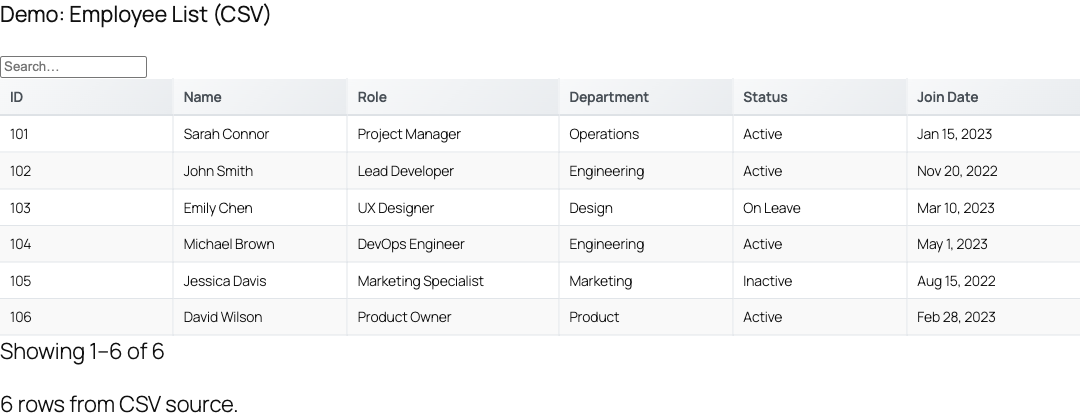
Turn a hosted CSV file or public Google Sheet into a fast, searchable, filterable member directory on any WordPress page using a single [tablecrafter] shortcode. No database imports, no manual data entry: edit the spreadsheet and the directory updates itself.
What you will build
A public-facing directory that lists members from a spreadsheet you control. Visitors can type in a search box to find people instantly, narrow results with per-column filters, page through long lists, and (optionally) download the directory. Email columns become clickable mailto: links and photo URLs render as thumbnails automatically, because TableCrafter inspects each cell value during rendering.
The data lives in a single CSV. When you add, edit, or remove a member in the spreadsheet, the directory reflects the change on the next cache refresh. Nothing is copied into the WordPress database.
TableCrafter renders the table on the server first (a real <table class="tc-table"> in the page HTML), so the directory is crawlable by search engines and visible even before JavaScript loads. The browser library then enhances it with live search, filters, and pagination.
Step 1, Prepare the CSV
The first row of the CSV must be the header row; each header becomes a column. TableCrafter reads comma-separated values, honors quoted fields, and strips a leading UTF-8 byte-order mark from the first header. Rows whose column count does not match the header are skipped, so keep every row complete.
A workable member sheet looks like this:
# members.csv
name,role,city,chapter,email,joined,photo
Ada Lovelace,Engineer,London,UK,ada@example.com,2021-03-14,https://cdn.example.com/ada.jpg
Grace Hopper,Advisor,New York,US East,grace@example.com,2020-11-02,https://cdn.example.com/grace.jpg
Alan Turing,Researcher,Manchester,UK,alan@example.com,2022-06-23,https://cdn.example.com/alan.jpg
Notice the email, joined (an ISO YYYY-MM-DD date), and photo columns. TableCrafter detects each of these value types during rendering and formats them: emails become mailto links, ISO dates become formatted <time> elements, and image URLs become lazy-loaded thumbnails.
Step 2, Host the CSV somewhere public
The source must be reachable over HTTPS. TableCrafter recognises a CSV source two ways:
- A URL ending in
.csv, for example a file in your WordPress Media Library, an S3/CDN object, or a GitHub raw link. - A Google Sheets URL, paste the normal
/spreadsheets/d/<id>/editlink. TableCrafter rewrites it internally to the CSV export endpoint and preserves thegidof the specific tab if one is present.
Remote sources are fetched over HTTPS with certificate verification, and private or local IP addresses are blocked for safety. A Google Sheet must be shared as "Anyone with the link can view"; a CSV file behind a login will return an HTTP error.
Step 3, Place the shortcode
Create or edit the page where the directory should appear and add the shortcode. The minimal version renders the directory with the default column filters enabled:
[tablecrafter source="https://cdn.example.com/members.csv"]For a real directory you will want search on, a sensible page size, and the columns presented in a friendly order. This is the recommended recipe:
[tablecrafter
  source="https://cdn.example.com/members.csv"
  search="true"
  filters="true"
  include="photo:Photo,name:Member,role:Role,city:City,chapter:Chapter,email:Contact"
  sort="name:asc"
  per_page="25"]
From a Google Sheet, swap the source, everything else is identical:
[tablecrafter
  source="https://docs.google.com/spreadsheets/d/1BxiMVs0XRA5nFMdKvBdBZjgmUUqptlbs74OgvE2upms/edit"
  search="true"
  per_page="25"]
Why include with aliases
The include attribute does three jobs at once: it selects which columns appear, it fixes their left-to-right order to match the list you write, and, using the key:Alias syntax, it relabels the header shown to visitors. Above, the raw CSV column email is displayed as Contact and name as Member, while the internal joined column is left out entirely. Any column not listed is hidden. If you would rather keep most columns and drop only a few, use exclude="joined,internal_notes" instead.
Step 4, Test the search and filters
With search="true", TableCrafter renders a debounced global search box (a .tc-global-search input inside .tc-global-search-container) above the table. Typing matches across all visible columns and re-renders results after a short pause, so a sheet of thousands of members stays responsive.
With filters="true" (the default), TableCrafter adds a per-column filter row and chooses each control's type by inspecting the data:
| Detected type | Control rendered | When it is chosen |
|---|---|---|
| Multiselect | Checkbox list of distinct values | A column with 2 - 20 distinct values (e.g. role, chapter) that is not a name/email/title/phone/address field |
| Number range | Min / max inputs | Columns whose values are all numeric |
| Date range | From / to date pickers | Date-like columns (e.g. joined), excluding id/sku/code-style fields |
| Text | Free-text contains filter | Everything else, including name and email |
This is why a member directory needs almost no configuration: role and chapter become tidy multiselect filters, joined becomes a date range, and name stays a text filter, all automatically.
If a low-cardinality column is rendering as a free-text box when you wanted checkboxes, confirm its field name does not contain name, email, title, desc, phone, address, or subject, those are deliberately forced to text filters so they never collapse into a giant checkbox list.
Step 5, Add export (optional)
To let visitors download the directory, turn on export:
[tablecrafter source="https://cdn.example.com/members.csv" search="true" export="true"]Export offers three formats: csv, xlsx, and pdf. The XLSX file is a genuine OOXML workbook built with PHP's ZipArchive (a real spreadsheet, not a renamed CSV), and the PDF is a valid PDF 1.4 document, both produced by the server-side export handler, not faked client-side.
A member directory often contains email addresses and other contact details. Only enable export on directories you are comfortable letting any visitor download in bulk. Leave it off (the default) for member-only or privacy-sensitive lists.
Shortcode attribute reference
These are the attributes most relevant to a CSV directory. Names go in the first column.
| Attribute | Default | Purpose |
|---|---|---|
| source Required | "" | HTTPS URL of the .csv file or Google Sheet. The only attribute you must set. |
| search Optional | false | Show the global search box. Set "true" for a directory. |
| filters Optional | true | Show auto-detected per-column filters. Set "false" to hide them. |
| include Optional | "" | Comma list of columns to show, in order. Supports key:Alias to relabel headers. |
| exclude Optional | "" | Comma list of columns to hide (when you prefer to drop a few rather than list all). |
| sort Optional | "" | Server-side initial sort as column:direction, e.g. name:asc or joined:desc. |
| per_page Optional | 0 | Rows per page. 0 shows all rows; a positive value enables pagination. |
| export Optional | false | Show export controls for CSV, XLSX, and PDF download. |
| root Optional | "" | Only for nested JSON sources. Leave empty for CSV, a CSV is already a flat list of rows. |
| id Optional | auto | Container DOM id. Auto-generated; set it only if you target the table from custom CSS or JS. |
Calling it from a template
To drop the directory into a theme template rather than page content, render the shortcode with PHP:
echo do_shortcode('[tablecrafter source="https://cdn.example.com/members.csv" search="true" per_page="25"]');You will find the same builder under WP Admin → TableCrafter, where the live-preview playground lets you paste a source and copy a ready-made shortcode before placing it on a page.
Theming the directory
TableCrafter ships unstyled-friendly markup with stable class hooks, so you can match your theme without touching plugin files. Add CSS targeting the rendered structure, the whole widget lives inside .tablecrafter-container:
/* Brand the header row and search box */
.tablecrafter-container .tc-table th { background: #0b3d2e; color: #fff; }
.tablecrafter-container .tc-global-search { border-radius: 999px; }
.tablecrafter-container .tc-link { color: #0b6; }
Useful hooks include .tc-table (the table), .tc-sortable (clickable headers), .tc-global-search-container and .tc-global-search (search), .tc-filters / .tc-filter / .tc-filter-input (filter row), .tc-pagination (paging), .tc-badge (Yes/No pills), and .tc-link (auto-linked values). On mobile, rows can render as cards that emit bubbling DOM events, tablecrafter:cardTap, tablecrafter:cardView, and tablecrafter:cardEdit, which you can listen for on the container if you want custom behaviour when a member card is opened.
How updates and caching work
TableCrafter uses a stale-while-revalidate strategy. The first visit fetches and parses the CSV, renders the HTML table, and stores both in a transient. Later visits serve that cached HTML instantly; once the cache is older than about five minutes, the next request schedules a background refresh (a tc_refresh_single_source single-event) so visitors never wait on the remote fetch. In practice this means a spreadsheet edit shows up within a few minutes without any manual cache clearing.
If the source ever fails to load, site administrators see an inline setup helper with the exact error and troubleshooting tips, while regular visitors see a quiet "Unable to load data" notice, so a broken sheet never exposes a raw error to your members.
Next steps
To live-refresh a directory that changes throughout the day, see auto-refresh.html for the auto_refresh and refresh_interval attributes; to load member data from a structured API instead of a flat CSV, see recipe-json-api-table.html for the root path attribute.