Recipe: Pricing Table from a Sheet
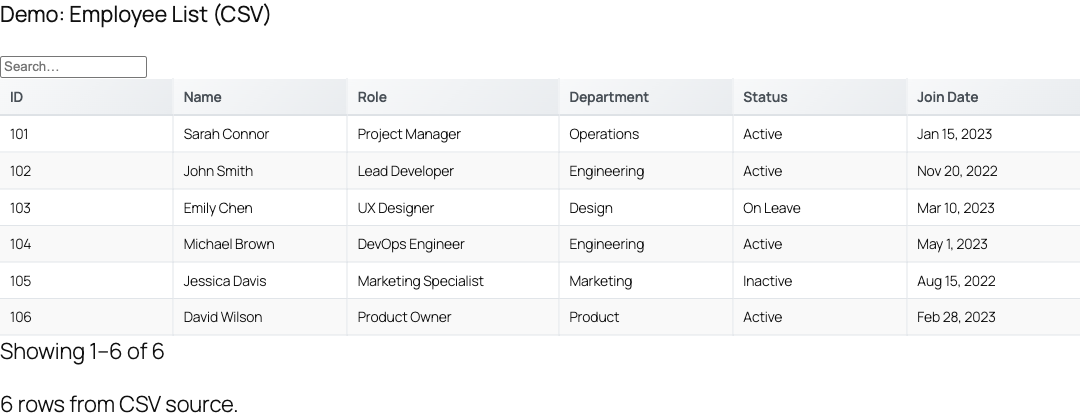
Turn a public Google Sheet of plans and prices into a fast, searchable WordPress pricing table using a single [tablecrafter] shortcode. No CSV exports, no database tables, no manual HTML.
What you'll build
A curated pricing table that reads its rows straight from a Google Sheet. Each time you edit the sheet, the table updates on your site (after the cache window). The finished example shows only the columns you care about, renames them to friendly labels, sorts by price, and offers a CSV/XLSX/PDF download.
TableCrafter v3.5.6 fetches the sheet server-side, converts it to an accessible HTML <table>, caches it with Stale-While-Revalidate, and hydrates it in the browser for search, filtering, and sorting. Nothing is stored in your WordPress database.
Step 1, Prepare the Google Sheet
Create a sheet where row 1 holds your column headers and every following row is one plan. TableCrafter reads the first row as the header and combines each later row into a record, so keep headers short and unique.
A workable pricing layout looks like this:
| plan | price | billing | seats | popular | signup_url |
|---|---|---|---|---|---|
| Starter | $9 | per month | 1 | false | https://example.com/buy/starter |
| Pro | $29 | per month | 5 | true | https://example.com/buy/pro |
| Team | $79 | per month | 20 | false | https://example.com/buy/team |
Then make the sheet readable without a login: in Google Sheets choose Share → General access → Anyone with the link → Viewer. TableCrafter fetches the sheet as an anonymous visitor, so a private sheet returns an error.
If the sheet is not shared as "Anyone with the link", the fetch fails and only logged-in administrators see the inline TableCrafter Setup Guide. Public visitors see a generic "Unable to load data" message.
Step 2, Grab the sheet URL
Copy the normal browser URL of your sheet. It looks like:
https://docs.google.com/spreadsheets/d/1BxiMVs0XRA5nFMdKvBdBZjgmUUqptlbs74OgvE2upms/editYou do not need to manually build an export link. TableCrafter detects the docs.google.com/spreadsheets/d/<id> pattern and internally rewrites it to /export?format=csv. If your pricing lives on a specific tab, keep the gid in the URL (for example ...&gid=123456789) and that tab is preserved automatically.
Step 3, Drop in the shortcode
Edit the page where the pricing table should appear (Pages → your page in wp-admin), add a Shortcode block, and paste the basic form:
[tablecrafter source="https://docs.google.com/spreadsheets/d/1BxiMVs0XRA5nFMdKvBdBZjgmUUqptlbs74OgvE2upms/edit"]That alone renders every column in the sheet. The next steps refine it into a real pricing table.
Prefer a guided flow? Go to TableCrafter in the wp-admin menu, paste the sheet URL into the Source field, toggle Search / Filters / Export in the sidebar, click Preview Table, then copy the generated shortcode.
Step 4, Curate and rename the columns
Use include to choose which columns appear and in what order. TableCrafter also supports an alias syntax inside include: write key:Friendly Label to relabel the header without touching your sheet. This is the key to a clean pricing layout.
[tablecrafter
  source="https://docs.google.com/spreadsheets/d/1BxiMVs.../edit"
  include="plan:Plan,price:Price,billing:Billing,seats:Seats,signup_url:Sign Up"]
Here the underlying keys (plan, price, signup_url) come straight from row 1 of the sheet, while the visible headers read "Plan", "Price", and "Sign Up". Columns appear in exactly the order listed in include. Any column you omit (like popular) is simply hidden. If you'd rather hide a few columns instead of listing the keepers, use exclude="popular,internal_notes".
Without an alias, headers are auto-prettified: underscores become spaces and words are capitalized, so signup_url displays as "Signup Url". Aliases give you full control over the wording.
Step 5, Add sorting, search, and export
Round out the experience with interactive features. The sort attribute takes a column:direction value (using the raw sheet key, not the alias) to set the initial order; columns are also click-to-sort in the browser. Turn on search for a live filter box and export to offer downloads.
[tablecrafter
  source="https://docs.google.com/spreadsheets/d/1BxiMVs.../edit"
  include="plan:Plan,price:Price,billing:Billing,seats:Seats,signup_url:Sign Up"
  sort="price:asc"
  search="true"
  filters="true"
  export="true"]
With export="true", visitors get a download control offering CSV, XLSX, and PDF. The export is generated server-side by includes/class-tc-export-handler.php, which produces a genuine spreadsheet (XLSX) and a real PDF, not a renamed CSV.
Smart cell rendering you get for free
TableCrafter inspects each cell value and renders it intelligently, which is ideal for pricing data:
- True/false values (like a
popularcolumn) render as a styled badge,<span class="tc-badge tc-yes">Yes</span>ortc-nowith "No". - URLs (your
signup_url) become clickable links that open in a new tab withrel="noopener noreferrer". - Image URLs render as a lazy-loaded
<img>thumbnail, handy for plan or vendor logos. - Email addresses become
mailto:links, and ISO dates (YYYY-MM-DD) render as a formatted<time>element.
So if you want a visible "Most popular" marker, keep a popular column of true/false values and include it; it renders as a badge automatically.
Attribute reference
These are the real [tablecrafter] attributes most relevant to a pricing table. The first column is the literal attribute name.
| Attribute | Required? | Purpose |
|---|---|---|
| source | Required | The sheet URL. A docs.google.com/spreadsheets/d/<id> link is auto-converted to CSV export; any .csv URL or public JSON URL also works. |
| include | Optional | Comma-separated keys to show, in order. Supports key:Alias to relabel headers. |
| exclude | Optional | Comma-separated keys to hide. Use instead of include when you want most columns. |
| sort | Optional | Initial sort as column:direction, e.g. price:asc or seats:desc. Uses the raw sheet key. |
| search | Optional | true/false, live global search box. Default off. |
| filters | Optional | true/false, per-column filters. Default on. |
| export | Optional | true/false, CSV/XLSX/PDF download controls. Default off. |
| per_page | Optional | Rows per page; 0 (default) shows all rows on one page. |
| id | Optional | Container element ID. Auto-generated if omitted; set it to target one table with custom CSS or JS. |
The root attribute (drilling into a nested JSON path) only applies to JSON API sources. Google Sheets and CSV produce a flat list of rows, so you can leave root empty for this recipe.
Styling the pricing table
TableCrafter renders plain, semantic markup you can restyle from your theme's CSS. The wrapper is .tablecrafter-container; inside it the table is table.tc-table, sortable headers carry th.tc-sortable, and each cell exposes a data-tc-label attribute (its column label) for responsive layouts. Target these real classes:
.tc-tableand.tc-table th, base table and header styling..tc-badge,.tc-yes,.tc-no, the boolean badge for a "popular" column..tc-wrapper,.tc-filters,.tc-global-search,.tc-pagination, the interactive toolbar pieces..tc-export-csv,.tc-export-dropdown, the export controls.
Example: highlight the price column and emphasize the "popular" plan badge.
/* Make the Price column stand out */
.tc-table td[data-tc-label="Price"] {
  font-weight: 700;
  color: #0b7;
}
/* Style the "Yes" badge from a popular column */
.tc-badge.tc-yes {
  background: #0b7;
  color: #fff;
}On narrow screens the table can switch to a stacked card view (.tc-cards-container). Mobile card interactions fire bubbling custom events you can listen for: tablecrafter:cardTap, tablecrafter:cardView, and tablecrafter:cardEdit.
How updates and caching work
When you edit a price in the sheet, the change is not instant. TableCrafter uses Stale-While-Revalidate caching backed by WordPress transients: the first visitor after the cache expires triggers a background refresh while still being served the previous version, and subsequent visitors get the fresh data. The HTML render cache lives up to an hour, and a background re-fetch is scheduled once the data is older than about five minutes. For a near-real-time pricing board, you can add auto_refresh="true" with a refresh_interval in milliseconds, though for pricing pages the default caching is usually the better, lower-overhead choice.
Troubleshooting
| Symptom | Likely cause & fix |
|---|---|
| "Unable to load data" | The sheet isn't public. Re-share as "Anyone with the link → Viewer". |
| Wrong tab's data shows | Append the correct &gid= from that tab's URL; TableCrafter preserves it. |
| Edits don't appear | Caching delay. Wait out the SWR window or change a shortcode attribute (which busts the cache key). |
| Headers look odd | Row 1 of the sheet must be your headers, and every data row must have the same number of columns; mismatched rows are skipped. |
| A column won't show | Check the key in include matches the sheet header exactly (case-sensitive, before any : alias). |
Next steps
To swap the sheet for a CSV file or a JSON API, see data-sources.html; to customize the downloadable files visitors get from the export button, see export-formats.html.