Recipe: Team / Staff Directory
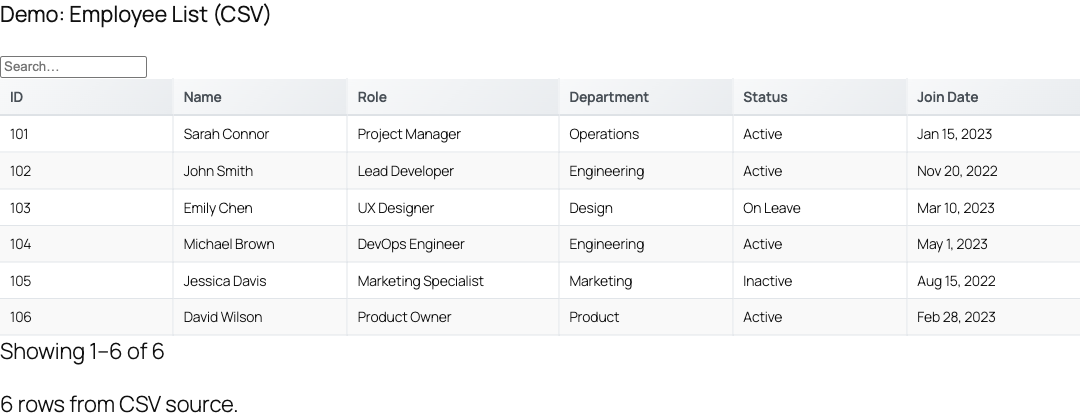
Turn a single CSV file or Google Sheet into a live, searchable staff directory with circular avatar thumbnails. TableCrafter auto-detects image URLs in any cell and renders them as zoomable photos, so a directory needs no custom code, just one [tablecrafter] shortcode.
What you'll build
A people directory rendered from a spreadsheet where one column holds a photo URL. The finished table shows an avatar thumbnail per person, a global search box, per-column filters (e.g. by Department or Status), and clickable email links, all from a few CSV columns. Because TableCrafter reads the sheet live, HR can update the directory by editing a Google Sheet, no WordPress login required.
TableCrafter does not have a dedicated "image column" attribute. Instead, the renderer inspects every cell value: anything that looks like an image URL is automatically converted to an <img> tag. This recipe is built entirely on that real auto-detection behavior, no extra column type to configure.
Step 1, Prepare the spreadsheet
Create a sheet (or CSV) with one row per person. Add a column whose cells contain full image URLs ending in a supported extension. The server-side renderer accepts .jpg, .jpeg, .png, .gif, .webp, and .bmp (SVG is intentionally rejected for security). A realistic layout:
# team.csv
Photo,Name,Role,Department,Email,Status,Join Date
https://cdn.example.com/staff/sconnor.jpg,Sarah Connor,Project Manager,Operations,sarah@example.com,Active,2023-01-15
https://cdn.example.com/staff/jsmith.png,John Smith,Lead Developer,Engineering,john@example.com,Active,2022-11-20
https://cdn.example.com/staff/echen.jpg,Emily Chen,UX Designer,Design,emily@example.com,On Leave,2023-03-10
https://cdn.example.com/staff/mbrown.webp,Michael Brown,DevOps Engineer,Engineering,mike@example.com,Active,2023-05-01
Several columns get smart formatting for free once TableCrafter recognizes their values:
| Cell content | Rendered as |
|---|---|
URL ending in .jpg/.png/.webp etc. | Avatar <img class="tc-cell-image"> (lazy-loaded) |
| A valid email address | mailto: link |
An ISO date like 2023-01-15 | <time> formatted as "Jan 15, 2023" |
true / false | A green "Yes" / "No" badge |
| Any other http(s) URL | Truncated link opening in a new tab |
Step 2, Publish the data source
TableCrafter fetches the data over HTTP, so the file needs a public URL. Two common options:
- CSV file: upload
team.csvto your Media Library or any host. Any URL ending in.csvis parsed as CSV automatically. - Google Sheet: use File → Share → Publish to web → CSV, or a link of the form
https://docs.google.com/spreadsheets/d/<SHEET_ID>/.... TableCrafter detects thedocs.google.com/spreadsheets/d/pattern and routes it through the CSV parser.
Host the avatar images somewhere stable (the WordPress Media Library works well). Use the same height-to-width ratio for every photo so the thumbnails line up cleanly in the column.
Step 3, Add the directory shortcode
Drop this into any page or post. It is a complete, working example using only real attributes:
[tablecrafter source="https://cdn.example.com/team.csv"
             include="Photo,Name,Role,Department,Email,Status"
             search="true"
             filters="true"
             sort="Name:asc"
             per_page="25"]
What each attribute does here:
includepins both which columns appear and their order, Photo is listed first so the avatar leads each row.searchrenders a global search box across all visible columns.filtersauto-generates per-column filter controls (Department and Status become handy dropdowns).sort="Name:asc"orders the directory alphabetically on first load.per_page="25"turns on pagination once you exceed 25 people.
Attribute reference
These are the shortcode attributes most relevant to a directory. Names are case-sensitive and match the column headers in your sheet.
| Attribute | Default | Description |
|---|---|---|
| source | (empty) | Required URL of the CSV file or published Google Sheet. |
| include | (all) | Optional Comma-separated column names to show; also sets column order. |
| exclude | (none) | Optional Comma-separated columns to hide (e.g. an internal ID). |
| search | false | Optional Show a global search box. Accepts true/false. |
| filters | true | Optional Auto-generate per-column filters (great for Department / Status). |
| sort | (none) | Optional Initial sort as column:direction, e.g. Name:asc. |
| per_page | 0 | Optional Rows per page; 0 disables pagination. |
| export | false | Optional Show export controls (CSV / XLSX / PDF). |
| id | (auto) | Optional Custom container ID for targeting with CSS/JS. |
| root | (empty) | Optional Dot-path to the data array (JSON sources only; not needed for CSV). |
For a flat CSV or Sheet you never need root, that attribute is for digging into nested JSON API responses. A directory built from a spreadsheet uses source plus include and is done.
Step 4, Style the avatars
Every auto-detected photo is wrapped in <img class="tc-cell-image">. The bundled stylesheet already gives these thumbnails a small footprint, rounded corners, and a hover-to-zoom effect, so a directory looks polished out of the box:
/* shipped defaults for .tc-cell-image */
.tc-cell-image {
  max-height: 50px;
  border-radius: 4px;
  cursor: zoom-in;        /* hover scales the avatar up */
}
To make the photos perfectly circular like classic profile avatars, add this to your theme's Additional CSS (target your own container id if you set one):
.tablecrafter-container .tc-cell-image {
  width: 48px;
  height: 48px;
  object-fit: cover;
  border-radius: 50%;
}Hovering an avatar enlarges it (a built-in transform: scale(2.5) with a soft shadow), giving visitors a quick close-up of each photo without a separate lightbox.
Variations
- Hide internal columns: keep an
IDorSalarycolumn in the sheet but drop it from view withexclude="ID,Salary". - Department sub-directories: publish one page per team and reuse the same
source; let visitors narrow down with the auto-generated Department filter (no extra attribute needed sincefiltersdefaults totrue). - Downloadable roster: add
export="true"to let staff download the directory. The export handler produces a genuine CSV, a real OOXML.xlsxworkbook, and a valid PDF, not files merely renamed. - Larger orgs: raise
per_page(e.g.per_page="50") to page through hundreds of employees while keeping the page light.
How the image detection works
Understanding the rule helps you avoid surprises. On first render TableCrafter builds the table server-side, and for each cell it checks, in order: is this a boolean, an image URL, an email, an ISO date, or a plain URL? A value passes the image test when it ends in a supported raster extension (or is a data:image/...;base64 string). Matching values become a lazy-loaded <img>; everything else falls through to the next check and is finally HTML-escaped. The frontend script applies the same logic during live updates, additionally requiring an http/https prefix before it will render a remote image.
SVG avatars are rejected on purpose to prevent script injection, and so are javascript: / non-image data: URLs. If a photo cell shows the raw URL text instead of an image, confirm the link ends in .jpg/.png/.webp (etc.) and is reachable over HTTPS.
Troubleshooting
| Symptom | Likely cause & fix |
|---|---|
| Photo shows as a link, not an image | The cell value doesn't end in a supported extension, or it's an SVG. Use a direct .jpg/.png/.webp URL. |
| Column missing from the table | The name in include/exclude must match the sheet header exactly, including spaces and capitalization. |
| Edits to the sheet don't appear | Output is cached (stale-while-revalidate). It refreshes within a few minutes; clear site/page caches to force it sooner. |
| "Unable to load data" message | The source URL isn't publicly reachable. Re-publish the Google Sheet to the web, or verify the CSV is served over HTTPS. |
To experiment first, the bundled sample at WP Admin → TableCrafter ships an "Employee List (CSV)" demo you can point a shortcode at before wiring up your own sheet.
Next steps
Add download buttons to your roster with export-data.html, or learn the full source-URL rules for live spreadsheets in google-sheets-source.html.