Data Sources Overview
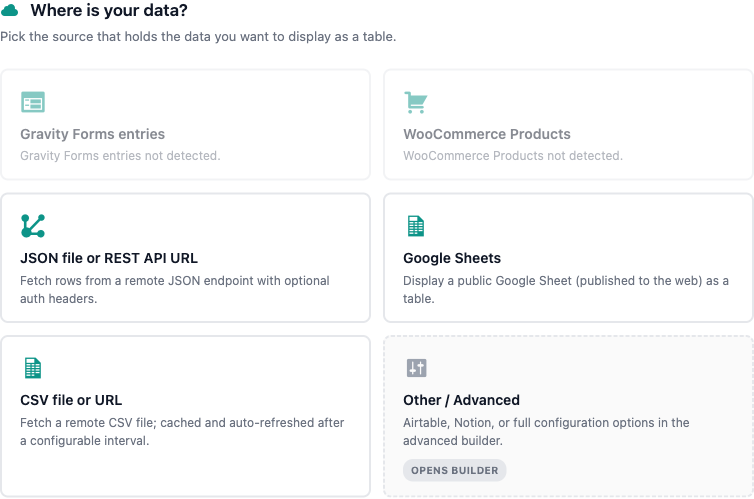
TableCrafter turns external data into responsive WordPress tables without storing anything in your database. The single source attribute on the [tablecrafter] shortcode accepts five kinds of input, and the plugin auto-detects which loader to use from the URL itself.
How source detection works
Every table is rendered by the [tablecrafter] shortcode, and the source attribute is always a URL (or a URL-like airtable:// string). When the table is first rendered, the data fetcher inspects that value and routes it to exactly one loader. The decision order is fixed:
- Local file, if the URL begins with your site URL, home URL, or the plugin URL, the file is read directly from disk (no HTTP round-trip).
- Airtable, if the value starts with
airtable://. - Google Sheets / CSV, if the URL matches a Google Sheets share link or ends in
.csv. - Remote JSON, everything else is fetched as a JSON API response.
Because detection is automatic, you never declare a "type" anywhere. You only need to provide the right kind of URL.
Data is never written to your WordPress database. TableCrafter is a viewer: it fetches on demand and caches the result in a transient using a Stale-While-Revalidate (SWR) strategy, so repeat page loads are served instantly while the source refreshes in the background.
Supported source types side by side
Use this table to pick the right source at a glance. The "URL pattern" column shows what triggers each loader.
| Source type | URL pattern | Returns | Cache TTL | Best for |
|---|---|---|---|---|
| Remote JSON API | https://… (anything not matching the rules below) | JSON array or nested object | 1 hour | Live REST endpoints, third-party services |
| Local JSON file | Starts with your site/home/plugin URL, ends in .json | JSON array | 1 hour | Self-hosted exports, static datasets you control |
| Remote CSV file | URL ending in .csv | Parsed rows (header = keys) | 1 hour | Exports from spreadsheets or BI tools |
| Local CSV file | Local URL ending in .csv | Parsed rows | 1 hour | Uploaded files, demo data |
| Google Sheets | Any docs.google.com/spreadsheets/d/… link | Parsed rows (CSV export) | 1 hour | Non-technical editors maintaining data in a sheet |
| Airtable | airtable://baseId/tableName | Flattened records | 5 minutes | Structured bases, linked records, attachments |
Remote URLs are screened for SSRF: requests to localhost and private/reserved IP ranges are blocked. A source like http://127.0.0.1/data.json or an internal 10.x address will be refused. Host your data on a publicly reachable URL or use a local file path under your WordPress install instead.
Remote JSON APIs
This is the default loader and the most common choice. Point source at any endpoint that returns a JSON array of objects. The server fetches the data for you, which means there are no browser CORS problems, the request never originates from the visitor's browser.
<!-- A flat JSON array at the top level -->
[tablecrafter source="https://api.example.com/products.json"]
If your API wraps the array inside a parent object, use the root attribute with dot notation to point at the array. The fetcher walks each segment of the path and returns the nested list.
<!-- Response shape: { "data": { "results": [ ... ] } } -->
[tablecrafter source="https://api.example.com/feed" root="data.results"]| Attribute | Required | Notes |
|---|---|---|
| source | Required | Public HTTPS endpoint returning valid JSON. Validated as a URL and screened for SSRF. |
| root | Optional | Dot-notation path to the array, e.g. items.list. A missing key returns a clear path error to admins. |
The free version supports public APIs and key-in-URL APIs (where the API key is part of the query string). Header-based or OAuth authentication is not handled by the JSON loader.
Local JSON and CSV files
When the source URL begins with your site URL, home URL, or the plugin URL, TableCrafter resolves it to a file on disk and reads it directly, skipping the HTTP layer entirely. This is faster and avoids any loopback request issues.
<!-- A JSON file hosted in your uploads or plugin folder -->
[tablecrafter source="https://yoursite.com/wp-content/uploads/inventory.json"]

<!-- A local CSV file (header row becomes the columns) -->
[tablecrafter source="https://yoursite.com/wp-content/uploads/employees.csv"]
For safety the loader only reads files inside the WordPress root, the wp-content directory, or the plugin directory, and only when the file has a .json or .csv extension. Anything outside those whitelisted paths is ignored.
In the admin builder you can use the Upload File (CSV/JSON) button to add a file and have its local URL filled in automatically. The bundled demos under demo-data/ (User Directory, Product Inventory, Sales Metrics, Employee List) are all loaded this way.
Google Sheets
Paste any Google Sheets share link directly into source. TableCrafter recognizes the docs.google.com/spreadsheets/d/… pattern, extracts the sheet ID, and rewrites it to the CSV export endpoint behind the scenes. If your link includes a gid (a specific tab), that tab is preserved.
[tablecrafter source="https://docs.google.com/spreadsheets/d/1BxiMVs0XRA5nFMdKvBdBZjgmUUqptlbs74OgvE2upms/edit#gid=0"]- The sheet must be shared as Anyone with the link so the server can read it.
- The first row becomes the column headers; a leading byte-order mark (BOM) is stripped automatically.
- Rows whose column count does not match the header are skipped, which keeps malformed lines from breaking the table.
Google Sheets is the easiest source for non-developers: a marketing or ops teammate can edit the sheet, and the table updates on the next background refresh with no shortcode changes.
Airtable
Airtable uses a custom airtable:// URL so the plugin can connect to the Airtable REST API, page through all records, and flatten them for display. The format is:
airtable://{baseId}/{tableName}?token={pat}&view={viewId}<!-- Inline token (key-in-URL style) -->
[tablecrafter source="airtable://appSampleBaseId/Employees?token=patXXXXXXXX"]
<!-- Using a saved token (recommended) -->
[tablecrafter source="airtable://appSampleBaseId/Employees?view=Grid%20view"]| Part | Required | Notes |
|---|---|---|
| baseId | Required | Your Airtable Base ID (starts with app…). Parsed as the host of the URL. |
| tableName | Required | Table name or table ID. Parsed as the first path segment. |
| token | Optional | Personal Access Token. If omitted, the saved encrypted token is used instead. |
| view | Optional | Restrict results to a named or ID view. |
A Personal Access Token is always required to reach Airtable. You can either put it in the token query parameter, or save it once via the Airtable button in the admin builder, saved tokens are encrypted with AES-256 before being stored as the tablecrafter_airtable_token option and never appear in your shortcode. Records are normalized: each row's fields object is flattened, the record id is exposed as _airtable_id, and arrays (linked records, attachments) are collapsed to a readable string (the first attachment URL for images).
Airtable enforces rate limits, so this source caches for only 5 minutes (versus 1 hour for other sources) and fetches at most 5,000 records (50 pages of 100). Plan for that ceiling on very large tables.
Choosing the right source
- You have a live REST API → Remote JSON. Add
rootif the array is nested. - Your data rarely changes and you control the server → Local JSON/CSV file for the fastest loads.
- A non-technical teammate maintains the data → Google Sheets, shared "Anyone with the link".
- Your data lives in a structured base with relations or attachments → Airtable.
- You exported from Excel or a BI tool → CSV (remote URL or uploaded local file).
Configuring a source in the admin builder
You can build any of these without writing the shortcode by hand:
- Open WP Admin → TableCrafter (top-level menu, slug
tablecrafter-wp-data-tables). - Paste a URL into Data Source URL, or use Upload File (CSV/JSON), Google Sheets, or Airtable.
- For nested JSON, fill in Data Root (Optional) with the dot path (e.g.
data.items). - Preview the table, then copy the generated shortcode into any post, page, or the Gutenberg/Elementor block.
Regardless of source, the data is rendered into a .tablecrafter-container element that carries the configuration as data-source and data-root attributes, which the frontend script reads to hydrate the interactive table.
Error handling and caching
Every loader returns a structured error rather than a blank screen. Logged-in admins see a diagnostic helper (bad URL, missing root key, non-array structure, empty dataset, auth failure), while visitors see a graceful "Unable to load data" message. Successful fetches are cached in a transient and refreshed in the background once stale, so neither a slow API nor a temporary outage stalls your page render.
Next, see shortcode-reference.html for the full list of [tablecrafter] attributes, and airtable-integration.html for a step-by-step Airtable connection walkthrough.